Short answer: enter one of these on the card application screen, under Promo code, before you tap Pay.
| Card | Code | Fee without the code | With the code |
|---|---|---|---|
| Virtual card | redoc |
10 USD | 8 USD |
| Physical card | redocs |
100 USD | 80 USD |
We typed both into the app on 1 November 2026, on an account that didn’t have a card yet. The screenshots below are from that test. The discount is on the one-off card fee only; it doesn’t change any other fee.
Where to enter it
The code goes in at the very end, on the payment screen for the card. You can’t add it to a card you already paid for.
- Verify your identity first; the Card tab stays locked until you do. See verify your identity.
- Open the Card tab and choose Virtual card or Physical card. See which one to pick.
- Tap Apply for card. The Card applications screen opens.
- Find Promo code. On the physical card form it’s folded; tap the row to open it.
- Type the code. The total at the bottom changes as you type; there’s no Apply button.
- Tap the total to see the breakdown. Only then tap Pay.
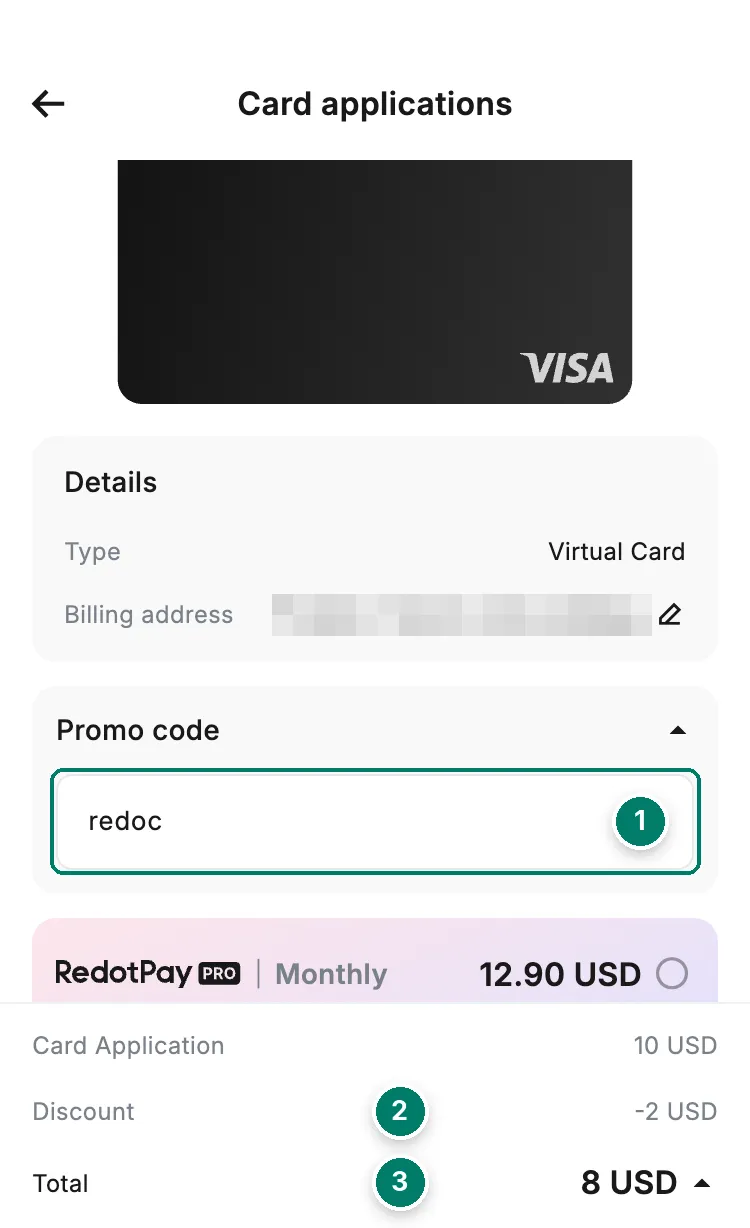
- Promo code field, with redoc typed in.
- The Discount line appears as soon as the code is accepted.
- Total: 8 USD instead of 10.
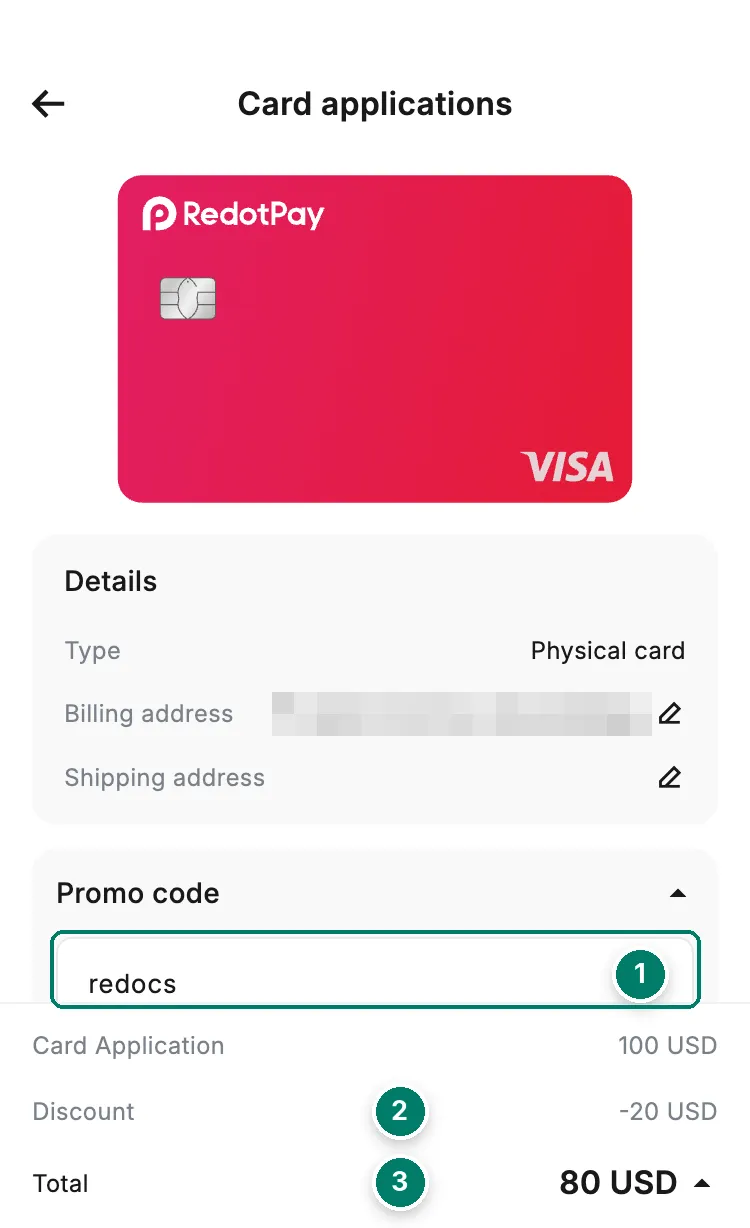
- Promo code field on the physical card form. Tap the Promo code row first to unfold it.
- Discount: -20 USD.
- Total: 80 USD instead of 100.
If the total doesn’t change
The app doesn’t show an error for a wrong code. The Discount line just doesn’t appear and the total stays at the full price. Check:
- Spelling.
redocfor the virtual card,redocsfor the physical one. No spaces, no capitals. - The right card. Each code only works on its own card type.
- The total before you pay. Expand it with the arrow next to the amount. If there’s no Discount line, the code wasn’t applied.
Promo code, referral code, sign-up reward: three different things
People search for all three as “RedotPay promo code”. They’re entered in different places and do different things.
| What it does | When you enter it | |
|---|---|---|
| Promo code (this page) | Takes 20% off the card fee | On the card application screen, before you pay |
| Referral | Links your account to whoever referred you | Only while you register. Sign up through a referral link; it can’t be added afterwards |
| Sign-up reward | 5 USD to spend, shown right after sign-up. Lasts 30 days and needs an active card | Automatic. It can’t pay the card fee |
RedotPay also has promo codes for its Send feature, which cut the transfer fee. Those are a different kind of code and don’t work on the card screen.
The other way to skip the card fee: RedotPay Pro
The same payment screen offers RedotPay Pro. The monthly plan (12.90 USD a month) waives the 10 USD virtual card fee once per account; the yearly plan (129 USD a year) waives the 100 USD physical card fee. That’s a subscription, with cashback and other perks, not a one-off discount. If all you want is the card, the code is the cheaper route. Pro’s benefits are on the fees page and in the app under Benefits.
What the code doesn’t change
- Who can get a card. Residents of Morocco and India can’t order one, and physical cards aren’t shipped everywhere. Check your country before you pay.
- Every other fee. The 1% crypto conversion, the 1.2% foreign-currency fee, ATM fees and the rest stay as they are. See fees and limits.
- Physical card delivery. Standard delivery is free anyway; express delivery is priced at checkout.