Everything you can change about a RedotPay card sits behind the four buttons under it: View, Freeze, Limit and Settings. Two more controls, which balance pays first and the low-balance alert, live under your profile. This page goes through all of them, screen by screen.
The four buttons under your card
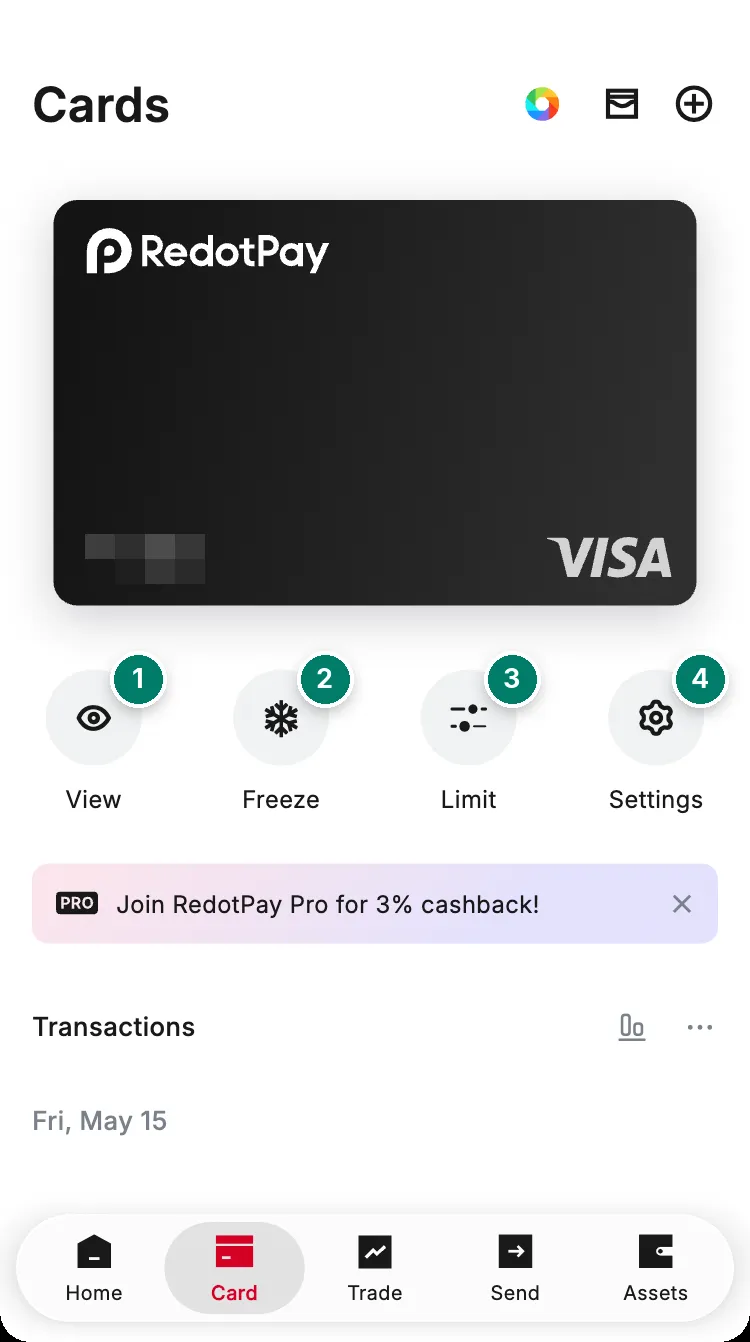
- View: shows the card number, expiry date and CVV after a biometric check or a code.
- Freeze: blocks new payments on this card until you unfreeze it.
- Limit: your own per-transaction and daily ceilings.
- Settings: security settings, billing address, card label, PIN on a physical card, and Delete card.
| You want to | Where it is |
|---|---|
| Stop online payments but keep paying in shops, or the reverse | Settings → Security settings → the two switches |
| Allow cash withdrawals with the physical card | Settings → Security settings → ATM Withdrawals |
| Cap what one payment, or one day, can take | Limit |
| Block payments in currencies you never use | Settings → Security settings → Set Transaction Currencies |
| Choose which coin or balance pays first | Profile icon → Payment settings → Payment Priority |
| Get warned before the balance runs out | Profile icon → Payment settings → Low balance alert |
| Stop the card for a while | Freeze |
| Change the PIN of a physical card | Settings → Change card PIN |
| Get rid of the card | Settings → Delete card, see deleting a card |
Payment controls: online, in-store, ATM
Card → Settings → Security settings. Each switch applies to this card only; if you have several cards, set each one.
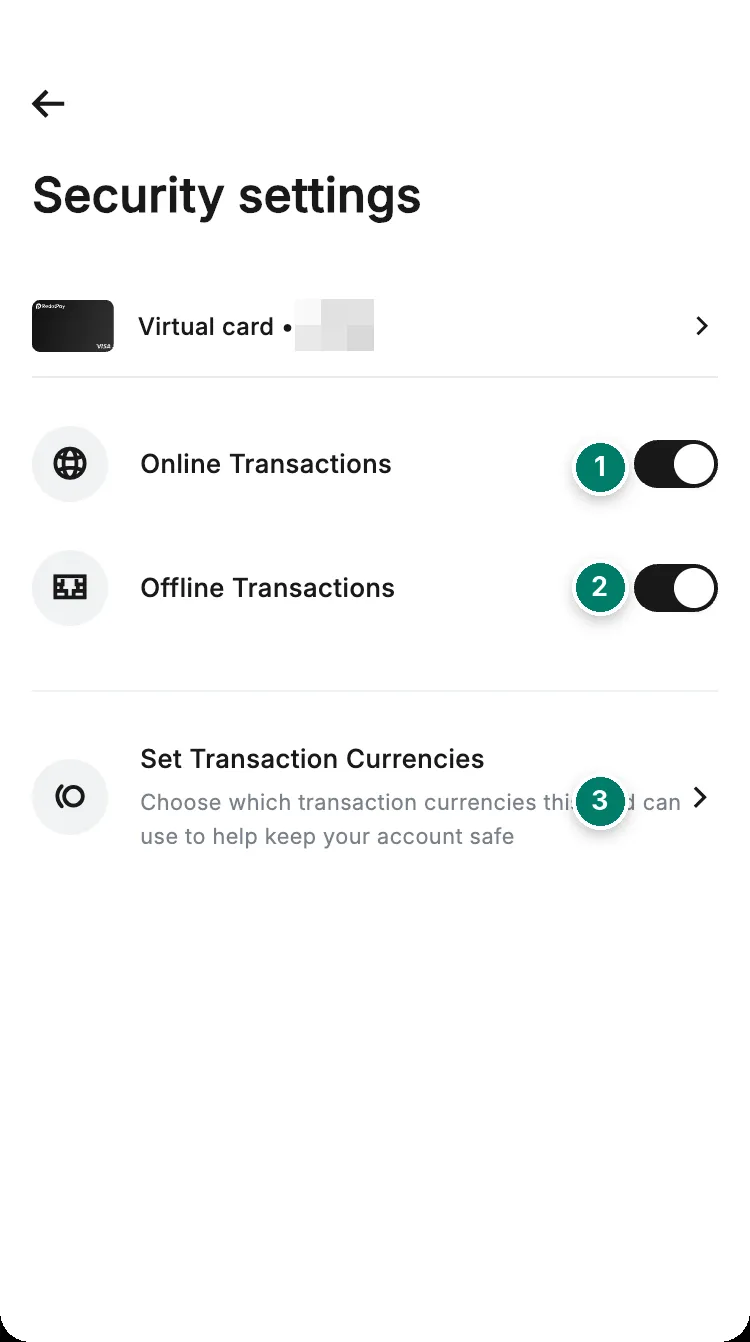
- Online Transactions: websites, apps and payments through a wallet such as Apple Pay or Google Pay.
- Offline Transactions: payments at a shop terminal.
- Set Transaction Currencies: the currencies this card may be charged in.
RedotPay’s guide lists three switches:
- Online transactions: web and third-party wallet payments.
- Offline transactions: point-of-sale payments in shops.
- ATM withdrawals: physical cards only. It isn’t on the screen above because that card is virtual. Turn it on before you go to a cash machine; see ATM withdrawals.
There is no separate contactless switch. A contactless tap is an in-store payment, so it follows Offline Transactions, and a physical card doesn’t tap at all until you activate it. If a tap is declined while the switch is on, the cause is usually the terminal, a regional contactless limit or several taps in a row; insert the card and use the PIN instead. See card declined in a shop.
Transaction limits
Card → Limit, then the pencil next to each amount. You can set a per-transaction limit, a daily limit, or both, separately for each card.
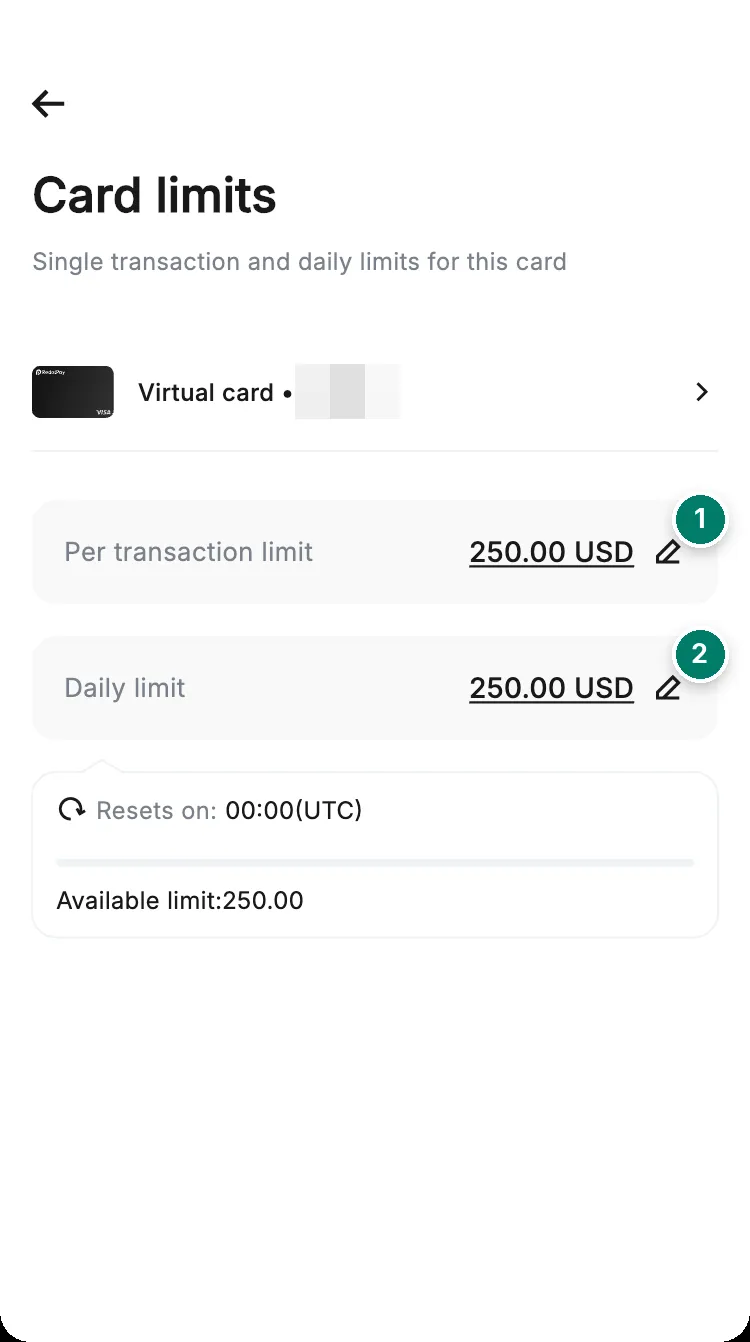
- Per-transaction limit: the most one payment can be.
- Daily limit: the total you can spend per day. It resets at 00:00 UTC.
A payment above either limit is declined, and declines beyond the third in a month cost 0.50 USD each (see fees). A good habit: keep the daily limit close to what you normally spend and raise it just before a large purchase.
Why the limit drops to 1,000 USD after a security change
When you change or remove your phone number, email address or Google Authenticator, or reset your password, RedotPay caps the card at 1,000 USD per transaction and 1,000 USD per day for 24 hours, whatever your own limits say. The usual limits come back on their own after 24 hours. A password reset or an email or phone change also pauses withdrawals for the same 24 hours; see withdrawing crypto. Plan security changes for a day without big payments.
Currencies the card can pay in
Card → Settings → Security settings → Set Transaction Currencies, toggle, then Save.
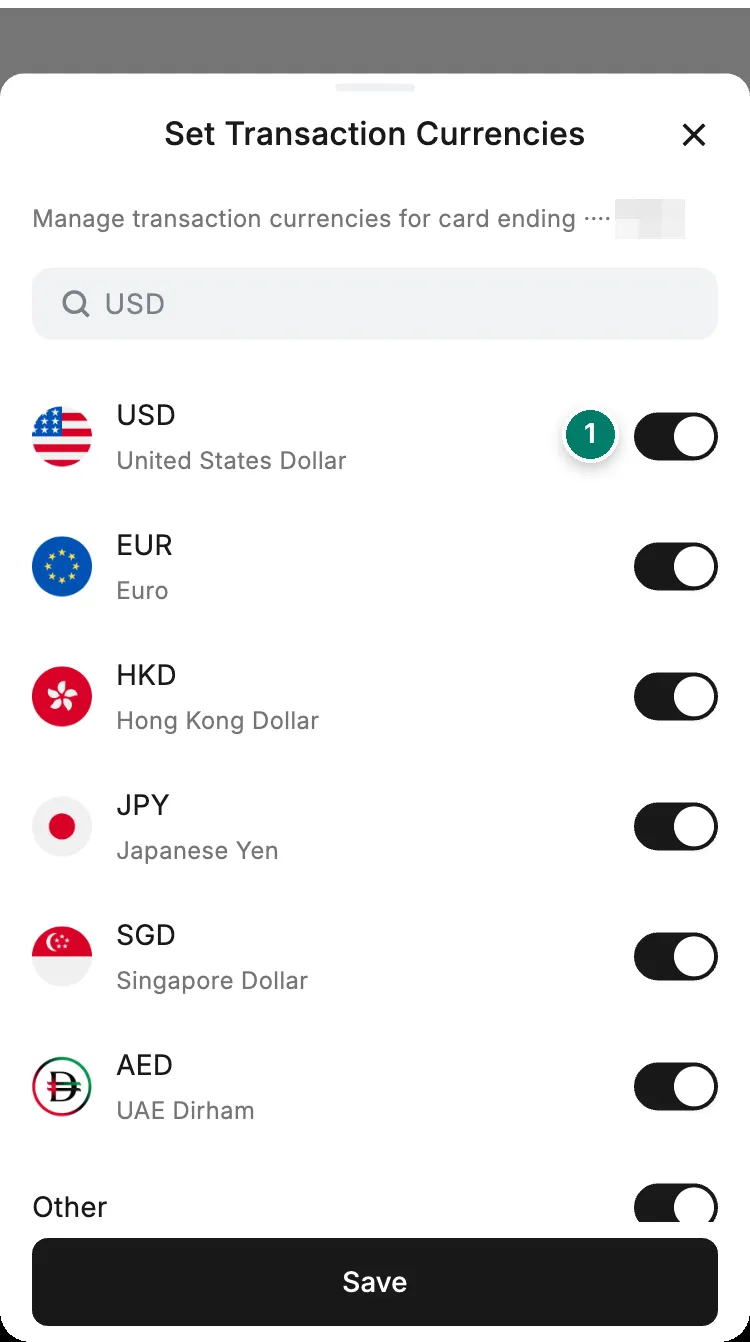
- Each currency has its own switch. All are on by default; Other covers every currency not listed.
All supported currencies are on when the card is issued. If you turn one off, any payment charged in that currency is declined, because it can’t be settled. The setting is per card. On the card we checked the list was USD, EUR, HKD, JPY, SGD, AED and Other.
Two things this setting does not do:
- It doesn’t change fees. A payment in any currency other than the card’s own currency costs 1.2%, whether or not that currency is switched on. See fees.
- It doesn’t choose the currency a shop charges in. If a site bills you in euros and EUR is off, the payment fails; that’s a common cause of an unexplained decline.
Which balance pays first
Profile icon → Payment settings. These two settings apply to your whole account, not to one card.
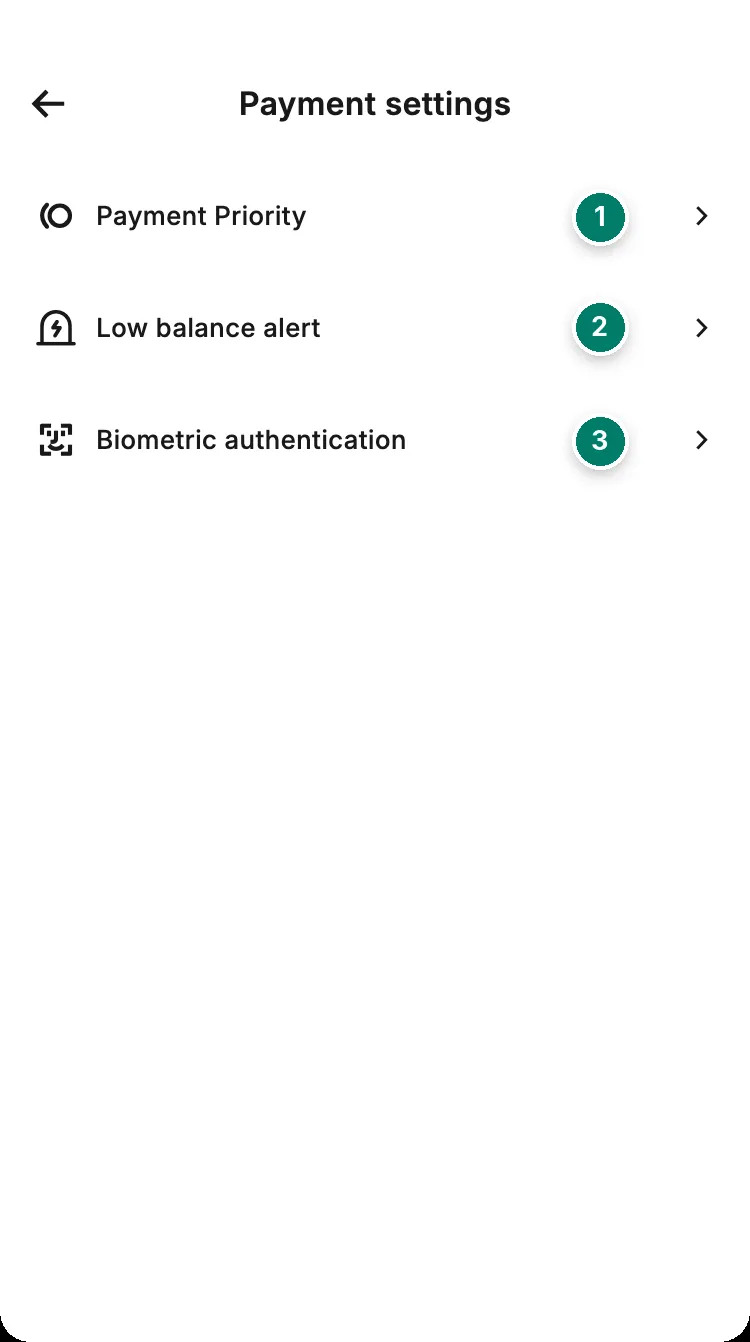
- Payment Priority: which balance a card payment is taken from first.
- Low balance alert: a notification and an email when your balance falls below an amount you choose.
- Biometric authentication: RedotPay's help centre doesn't describe this switch. From its name, a face or fingerprint check on payments.
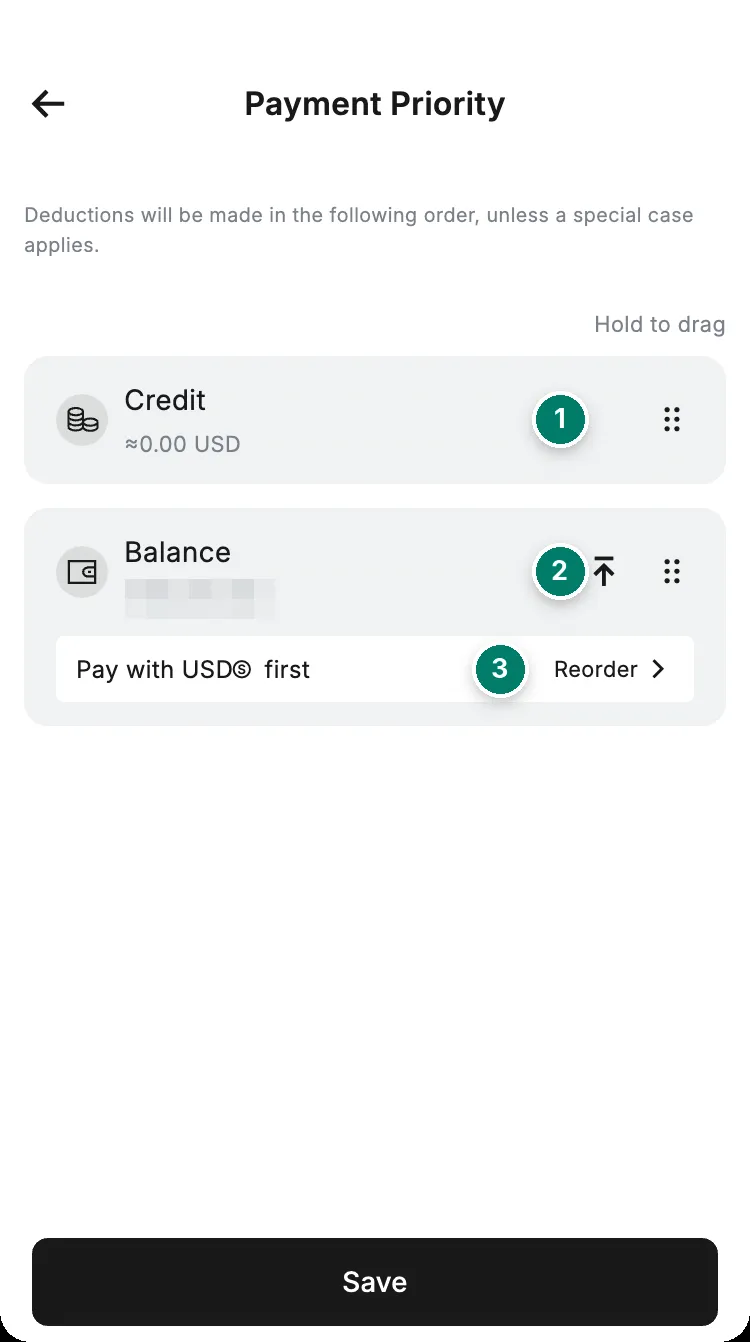
- Credit is used first, if you have a credit line.
- Move Balance to the top to pay from what you hold.
- Choose which coin in your balance pays first. Pick one that actually has money in it.
To change the order of coins: Payment Priority → Balance → turn on Custom priority → press and hold a currency and drag it to the top → Save. Paying from crypto costs 1% to convert; paying from a USD balance in the card’s currency costs nothing, which is why the order matters. See what one payment costs.
Low-balance alerts
Profile icon → Payment settings → Low balance alert → switch it on, enter an amount, Save. When your balance drops below that amount, you get an app notification and an email asking you to top up. Set it above your biggest monthly subscription: a declined renewal can cost a decline fee and a merchant retry.
3D Secure (3DS)
3DS is the extra check at checkout, a one-time code or an in-app approval, that confirms it’s you. It is not a switch in RedotPay. The merchant decides whether a payment uses it. If a 3DS step fails or never appears, the merchant is the one to ask.
Freezing your card
Card → Freeze blocks new purchases on that card. Your other cards keep working, and the same button unfreezes it. Your balance isn’t affected; it belongs to the account, not the card.
Two things to know:
- While a card is frozen, merchants that keep trying it, subscriptions above all, still produce declines, and RedotPay says declined-payment fees may still apply. Cancel subscriptions with the merchant first.
- Freezing is the right first step if you see charges you didn’t make.
“Temporarily frozen”: RedotPay froze it, not you
RedotPay freezes a card on its own when someone enters:
- the wrong ATM PIN 3 times within 24 hours;
- the wrong CVV 3 times within 1 hour;
- the wrong expiry date 3 times within 1 hour.
A frozen card can’t pay online, in shops or at ATMs. A freeze caused by CVV or expiry-date attempts lifts by itself after 24 hours. RedotPay doesn’t say how a freeze caused by ATM PIN attempts is lifted; if it hasn’t cleared after a day, contact support. Three wrong CVV attempts can also mean someone has your card number: check your transactions and consider replacing the card.
Billing address, card label and PIN
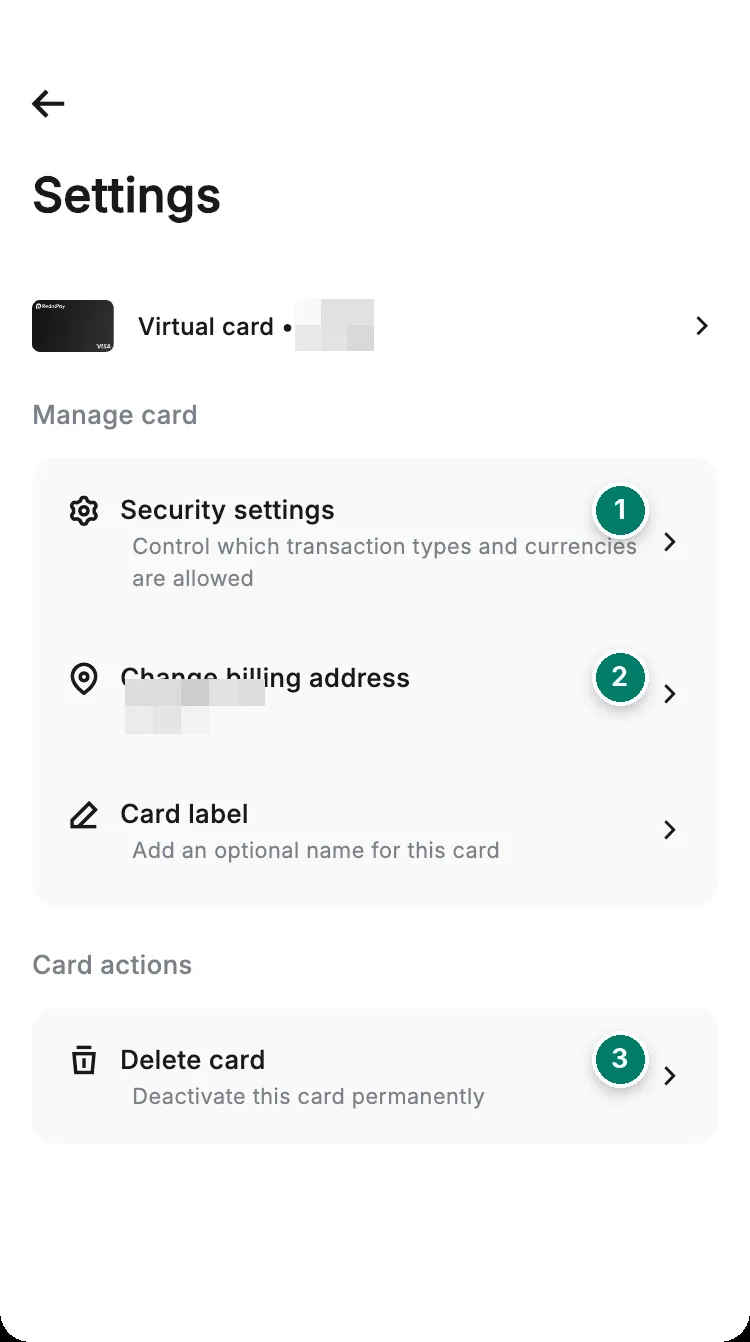
- Security settings: the payment switches and currencies above.
- Change billing address: the address merchants check against the card.
- Delete card: permanent, and the card fee isn't refunded.
- Change billing address: enter the new address and tap Save. Shops and services like PayPal compare the address they hold with this one; a mismatch is a reason for a refusal.
- Card label: an optional name for the card, useful once you have more than one. You can hold up to 5 cards in a lifetime, deleted ones included.
- Change card PIN: physical cards only, after activation, 4 or 6 digits. Virtual cards have no PIN and can’t be given one. If you forget the PIN, the same screen resets it; see the physical card.
- Delete card: can’t be undone. Freeze or switch off a payment type instead if the problem is temporary. What you lose is on the delete page.
Your card number and CVV
Card → View, then confirm with Face ID, fingerprint or your device PIN, or with a code sent by email, SMS or Google Authenticator. The number, expiry date and CVV appear on screen.
The CVV is the three-digit code used to prove it’s you when paying online. RedotPay’s advice is simple: never share the number, expiry date or CVV with anyone, including people who say they work for RedotPay. Wherever you can, pay through Apple Pay or Google Pay, so the real number is never typed into a website. If you think the details have leaked, RedotPay sells a virtual card replacement that changes the CVV and expiry date and keeps the number; it’s described on the delete page.